How to Transfer Data From One Mobile Phone to Another Mobile Phone: Complete Step-by-Step Guide
How to Transfer Data From One Mobile Phone to Another
Introduction
Buying a new smartphone is always exciting. Whether you have purchased a new Android phone or upgraded to the latest iPhone, one of the first things you probably want to do is transfer your important data from your old mobile phone to your new device. However, many people find this process confusing, especially when they have hundreds of photos, videos, contacts, applications, messages, and personal documents stored on their previous phone.
How to Transfer Data From One Mobile Phone to Another:The good news is that transferring data from one mobile phone to another mobile phone has become much easier than before. Modern smartphones provide several built-in features and applications that allow users to move their information without manually copying every file. You can transfer your contacts, pictures, videos, documents, messages, and other important information using Wi-Fi, Bluetooth, USB cables, cloud storage, or dedicated phone transfer applications.
In this complete guide, we will explain different methods to transfer data from an old mobile phone to a new mobile phone. Whether you are moving from Android to Android, iPhone to iPhone, Android to iPhone, or iPhone to Android, you will find a suitable solution here.
Let’s explore the easiest and safest ways to move your important information to your new smartphone.
1. Transfer Data From One Android Phone to Another Android Phone
If you are switching from an old Android smartphone to a new Android device, transferring your information is relatively simple. Most Android manufacturers provide built-in data transfer options during the initial phone setup.
You can move many types of information, including contacts, photos, videos, call history, messages, applications, and certain device settings.
Follow these steps to transfer your data.
Step 1: Turn on your new Android smartphone and select your preferred language.
Step 2: Connect your new phone to a stable Wi-Fi network.
Step 3: During the initial setup, look for the option called Copy Apps and Data or Copy Data From Old Device.
Step 4: Select the option to transfer information from your previous Android phone.
Step 5: Depending on your devices, connect both smartphones using a compatible USB cable or choose the wireless transfer option.
Step 6: Follow the instructions displayed on both screens.
Step 7: Select the information you want to transfer, such as contacts, photos, videos, messages, and applications.
Step 8: Start the transfer process and keep both devices connected until it finishes.
Once the process is complete, check your new smartphone to make sure your important information has been transferred successfully.
Keep in mind that some applications, passwords, banking information, and app-specific data may require separate sign-in or setup.
2. Transfer Data Using Google Account
Google provides a convenient way to back up and restore important information between Android smartphones. If you use a Google account on your old device, you can back up supported information and restore it when setting up your new phone.
This method is especially useful for people who want to transfer contacts, certain device settings, call history, SMS messages, and supported application data.
How to Back Up Your Old Android Phone
1. Open the Settings application on your old smartphone.
2. Find Google or Google Services.
3. Open Backup.
4. Enable the available backup options.
5. Tap Back Up Now, if available.
6. Wait until the backup process finishes.
How to Restore Data on Your New Phone
1. Turn on your new Android smartphone.
2. Connect it to Wi-Fi.
3. Sign in using the same Google account.
4. Select the available backup during device setup.
5. Choose the information you want to restore.
6. Follow the instructions on your screen.
Your new smartphone will begin restoring the supported information.
One important advantage of Google backup is that you do not always need to keep both smartphones physically connected. However, the available backup information depends on your device, Android version, settings, and applications.
3. Transfer Photos and Videos Between Two Mobile Phones
Photos and videos are among the most important files people want to move when purchasing a new smartphone. Family pictures, personal memories, travel videos, and important recordings can take up several gigabytes of storage.
There are multiple ways to transfer these files.
Using Google Photos
Google Photos is a popular service for backing up and accessing pictures and videos across different devices.
Follow these steps.
1. Install Google Photos on your old smartphone, if it is not already installed.
2. Open the application.
3. Sign in with your Google account.
4. Enable Backup in the application settings.
5. Wait until your photos and videos finish uploading.
6. Install Google Photos on your new phone.
7. Sign in with the same Google account.
You will then be able to access your backed-up photos and videos on the new device.
Remember that Google Photos storage is shared with other Google services, and the available space depends on your account storage plan.
Using Bluetooth
Bluetooth is another option for transferring pictures and smaller files between compatible smartphones.
1. Turn on Bluetooth on both devices.
2. Pair the two smartphones.
3. Open the Gallery application on your old phone.
4. Select the pictures you want to transfer.
5. Tap Share and choose Bluetooth.
6. Select your new smartphone.
7. Accept the incoming files on the receiving device.
Bluetooth is useful for smaller transfers, but it can be slow when moving hundreds of pictures or large videos.
Using USB Cable
If both smartphones support compatible USB connections, you can use a suitable cable or adapter to transfer files directly.
Connect the devices, select the file transfer option when prompted, and follow the instructions provided by your phone’s transfer system.
4. Transfer Data From iPhone to iPhone Using Quick Start
Apple provides a built-in feature called Quick Start that makes it easy to transfer information from an old iPhone to a new iPhone.
This feature is particularly useful when upgrading to a newer Apple device because it can help transfer supported applications, settings, photos, messages, and other information.
Follow these instructions.
1. Turn on your new iPhone.
2. Place your old iPhone near the new device.
3. Make sure Bluetooth is enabled on the old iPhone.
4. A Quick Start notification should appear on your old device.
5. Follow the instructions displayed on the screen.
6. Scan the animation displayed on your new iPhone using your old iPhone.
7. Enter your old iPhone passcode when requested.
8. Choose the available transfer option.
9. Keep both devices near each other until the process is complete.
You should also keep both devices connected to power if the transfer takes a long time.
Quick Start is one of the easiest methods for moving from an older iPhone to a newer iPhone without manually transferring every file.
5. Transfer Data From Android to iPhone
Many people switch from Android smartphones to Apple iPhones. However, they often worry about losing their contacts, photos, messages, and other personal information.
Apple offers an application called Move to iOS that helps users transfer supported information from an Android device to a new iPhone.
Step-by-Step Instructions
Step 1: Download the Move to iOS application from Google Play Store on your Android phone.
Step 2: Turn on your new or factory-reset iPhone.
Step 3: Begin the initial iPhone setup process.
Step 4: When you reach the Transfer Your Apps and Data screen, select From Android.
Step 5: Open Move to iOS on your Android smartphone.
Step 6: Enter the code displayed on your iPhone into your Android device.
Step 7: Connect both devices to the temporary Wi-Fi network created for the transfer.
Step 8: Select the supported information you want to move.
Step 9: Wait for the transfer to finish before using either device.
Depending on compatibility and the versions of both operating systems, supported information may include contacts, message history, photos, videos, calendars, mail accounts, and some other data.
Some applications may need to be downloaded again from the Apple App Store. You may also need to transfer certain files or application information separately.
6. Transfer Data From iPhone to Android
If you are moving from an iPhone to an Android smartphone, you can also transfer your important information without manually copying everything.
Many Android manufacturers provide their own transfer applications, while some devices support Google’s Android switching process.
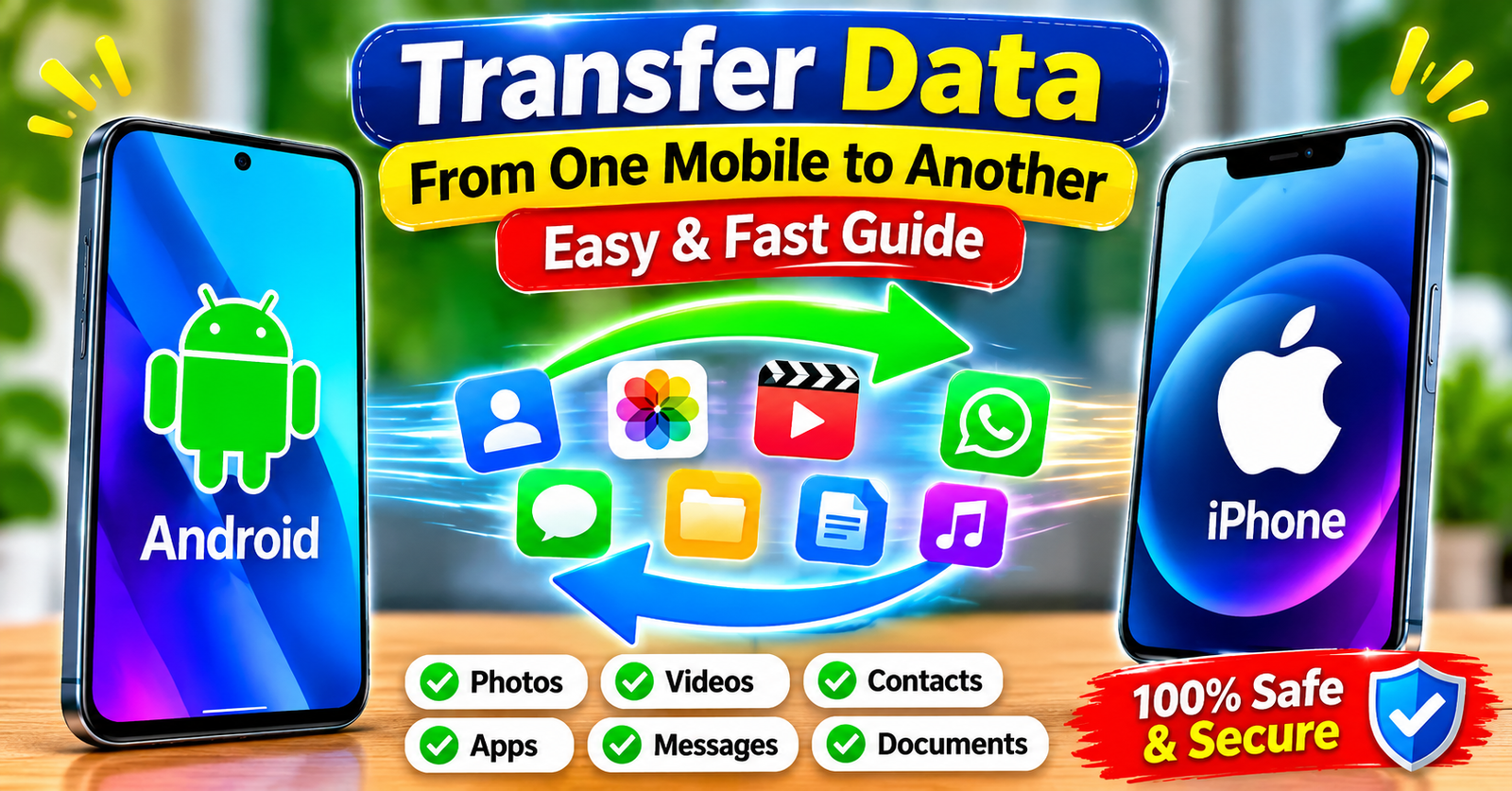
You can use a compatible cable or wireless transfer method, depending on your devices.
Using a Cable
1. Turn on your new Android smartphone.
2. Start the initial setup process.
3. Select the option to copy data from an iPhone.
4. Connect your iPhone to the Android device using a compatible cable or adapter.
5. Unlock your iPhone.
6. Tap Trust if your iPhone asks whether you trust the connected device.
7. Select the information you want to transfer.
8. Follow the instructions on your Android screen.
9. Wait until the process finishes.
Using Google’s Transfer Process
Some Android smartphones also provide wireless transfer options. During setup, look for the option to copy information from an iPhone and follow the instructions.
Before switching, remember to turn off iMessage for your phone number if you are permanently moving to Android. This helps prevent problems receiving text messages from other iPhone users.
7. Transfer Data Using Samsung Smart Switch
Samsung Smart Switch is a dedicated application designed to help users move information to Samsung Galaxy smartphones.
It supports transfers from many Android devices and iPhones, depending on the device and transfer method.
You can use Smart Switch to move supported contacts, pictures, videos, messages, documents, and other information.
How to Use Samsung Smart Switch
1. Open Settings on your new Samsung Galaxy phone.
2. Search for Smart Switch.
3. Open the application.
4. Select Receive Data.
5. Choose Galaxy/Android or iPhone/iPad.
6. Select Wireless or Cable, depending on your preference.
7. Follow the instructions displayed on both devices.
8. Select the data you want to transfer.
9. Start the transfer and wait for completion.
Samsung Smart Switch is especially helpful when upgrading from an older Samsung phone to a new Galaxy smartphone.
It is important to understand that some third-party applications and protected data may not transfer automatically.
8. Transfer Mobile Data Using SHAREit and Similar Applications
File-sharing applications provide another way to transfer information between smartphones.
Applications such as SHAREit and other local file-sharing tools can transfer pictures, videos, documents, and supported files without requiring you to upload everything to cloud storage.
The general process is simple.
1. Install a compatible file-sharing application on both smartphones.
2. Open the application on both devices.
3. Select Send on your old smartphone.
4. Select Receive on your new smartphone.
5. Connect the devices using the connection method provided by the application.
6. Choose the files you want to transfer.
7. Start sending the files.
The transfer speed depends on your devices, network connection, application, and file sizes.
Important Security Tip: Always download file-sharing applications from trusted sources, such as Google Play Store or Apple App Store. Check the permissions requested by an application before using it, and avoid sharing sensitive files through unknown third-party services.
9. Transfer Contacts From One Phone to Another
Contacts are essential because they contain phone numbers, email addresses, names, and other important details.
Fortunately, transferring contacts is usually easier than transferring large media files.
Using Google Contacts
1. Open the Contacts application on your old Android phone.
2. Make sure your contacts are saved or synchronized with your Google account.
3. Open Settings and check your account synchronization settings.
4. Sign in to the same Google account on your new Android phone.
5. Enable Contacts synchronization.
our supported contacts should appear on the new device after synchronization.
Using a VCF File
Another option is to export your contacts into a VCF file.
1. Open the Contacts application.
2. Find the Import/Export option.
3. Select Export to File.
4. Save the VCF file.
5. Share the file with your new smartphone.
6. Open it on the receiving phone.
7. Select Import Contacts.
This method is useful when you do not want to synchronize your entire Google account.
10. Transfer WhatsApp Chats From Old Phone to New PhoneWhatsApp conversations often contain important personal messages, photographs, videos, documents, and voice notes.
If you are changing smartphones, you should transfer your WhatsApp information carefully.
Android to AndroidYou can use WhatsApp’s chat transfer feature or a supported Google Account backup.
To use Google Drive backup:
1. Open WhatsApp on your old Android phone.
2. Go to Settings.
3. Select Chats.
4. Open Chat Backup.
5. Select Back Up.
6. Wait until the backup finishes.
7. Install WhatsApp on your new phone.
8. Verify the same phone number.
9. Use the same Google account associated with your backup.
10. Follow the restore instructions.
iPhone to iPhoneUse WhatsApp’s supported iCloud backup or its chat transfer feature. Make sure you use the same phone number and Apple account associated with the backup.
Android to iPhone or iPhone to Android
WhatsApp provides supported migration options for moving chats between operating systems. In many cases, you need to perform the migration during the initial setup of the receiving phone.
Do not delete WhatsApp or erase your old phone until you have confirmed that your chats and important media are available on the new device.
11. Transfer Files Using a ComputerIf you have a large amount of data, using a computer can be a practical solution.
This method is especially helpful for transferring movies, large video files, documents, music, and other folders.
Step-by-Step Process
1. Connect your old Android phone to your computer using a USB cable.
2. Unlock your phone.
3. Select File Transfer when the USB notification appears.
4. Open your phone storage on the computer.
5. Copy the required folders to your computer.
6. Safely disconnect your old phone.
7. Connect your new smartphone.
8. Select File Transfer.
9. Copy the saved folders into the appropriate locations.
For iPhones, you can use supported Apple device-management and file-sharing options to transfer compatible files.
Always check that your files have copied successfully before deleting anything from your old device.
12. Important Things to Do Before Transferring Mobile Data
Before starting the transfer process, it is important to prepare both smartphones. A little preparation can help prevent missing files, incomplete transfers, and unnecessary problems.
Here are some important tips.1. Charge Both SmartphonesMake sure both devices have enough battery. Large transfers can take a long time, so keeping them connected to power is a good idea.
2. Check Available StorageYour new smartphone should have enough free storage to receive your old data. If your previous phone contains 100 GB of files, make sure your new device has sufficient space.
3. Create a BackupAlways create a backup of your important information before starting the transfer. This provides an additional layer of protection if something goes wrong.4. Use a Stable Internet ConnectionIf you are using cloud backup or wireless transfer, connect both devices to a reliable Wi-Fi network.
5. Keep Your Old Phone SafeDo not factory-reset your old smartphone immediately after transferring data. First, check your photos, contacts, messages, documents, and important applications.
6. Update Your ApplicationsUsing updated versions of transfer applications can help prevent compatibility problems.7. Check Your Account PasswordsMake sure you can access your Google account, Apple account, and other important services before beginning the process.
13. Common Problems During Phone-to-Phone Data Transfer and Their SolutionsSometimes, users experience problems while transferring data from one mobile phone to another. The process may stop, some files may not appear, or the devices may fail to connect.
Here are some common problems and their solutions.
Problem 1: Transfer Process Is Too SlowLarge videos, photographs, and application data can increase transfer time.Solution: Keep both phones close together during wireless transfer, use a reliable Wi-Fi connection, or choose a compatible USB cable.
Problem 2: New Phone Does Not Detect Old Phone
Sometimes, the receiving device cannot find the previous smartphone.
Solution: Restart both devices, enable Bluetooth or Wi-Fi when required, and follow the connection instructions again.
Problem 3: Some Photos Are MissingPhotos may be stored in different folders or cloud services.
Solution: Check your Gallery, Google Photos, iCloud Photos, and other backup locations.
Problem 4: Contacts Are Not Showing
Contacts may be saved locally instead of being synchronized with your Google or Apple account.
Solution: Check the account where your contacts are stored and enable synchronization or export them using a VCF file.
Problem 5: WhatsApp Messages Are Missing
WhatsApp backups may be associated with a different Google account, Apple account, or phone number.
Solution: Verify that you are using the correct account and phone number, and follow the official WhatsApp migration or restoration process.
Problem 6: Not Enough Storage Space
our new phone may not have enough available storage for all the files.
Solution: Remove unnecessary files, move large videos to a computer, or choose only the information you actually need.
14. Which Is the Best Method to Transfer Data Between Two Phones?
The best method depends on the smartphones you are using and the type of information you want to transfer.
Here is a simple comparison.
Transfer Method| Best For
Google Backup| Android contacts, settings, and supported app data
Quick Start| iPhone to iPhone
Move to iOS| Android to iPhone
Android Switching Tools| iPhone to Android
Samsung Smart Switch| Samsung Galaxy devices
Bluetooth| Small files and selected photos
USB Cable| Large files and direct transfers
Google Photos| Photos and videos
Computer| Documents, videos, and large folders
If you want to transfer almost everything while setting up a new smartphone, the built-in transfer tool is usually the best starting point.
If you only need pictures, videos, or documents, cloud storage, a USB cable, or a file-sharing application may be more convenient.
15. Frequently Asked Questions About Transferring Data Between Mobile Phones
Q1. How can I transfer everything from my old phone to my new phone?You can use the built-in phone transfer feature available during the initial setup of your new smartphone. Connect both devices using a compatible cable or wireless method, select the supported information, and follow the instructions.
Q2. Can I transfer data without using the internet?Yes. Many smartphones support direct cable transfers or local wireless transfers. Bluetooth can also transfer smaller files without an internet connection.
Q3. Can I transfer all my applications to a new phone?You can usually reinstall compatible applications through Google Play Store or Apple App Store. However, some applications may require separate login, setup, or data restoration.Q4. How long does it take to transfer data between two phones?The transfer time depends on the amount of information, connection speed, phone performance, and transfer method. A small transfer may take a few minutes, while a large transfer can take considerably longer.Q5. Can I transfer data from Android to iPhone?Yes. Apple’s Move to iOS application allows users to transfer supported information from Android to iPhone during the initial setup process.Q6. Can I transfer data from iPhone to Android?Yes. You can use a compatible cable or the transfer options provided during Android setup to move supported information.
Q7. Will transferring data delete information from my old phone?Normally, copying or transferring information does not automatically erase the original files from your old phone. However, always check the transfer method and verify your data before resetting the old device.
Q8. Can I transfer WhatsApp messages to another phone?Yes. WhatsApp provides backup, restoration, and supported phone-to-phone migration options. The correct method depends on whether you are moving between Android devices, iPhones, or different operating systems.
Q9. Is Bluetooth good for transferring large videos?Bluetooth can transfer videos, but it is generally slower than direct Wi-Fi or USB transfers. For large files, a compatible cable or dedicated transfer method is usually more convenient.
Q10. What should I do before selling my old smartphone?First, verify that your important data is safely transferred or backed up. Then sign out of your accounts where appropriate, remove your personal information, and perform a factory reset according to your device manufacturer’s instructions.
Conclusion:Transferring data from one mobile phone to another mobile phone is now easier than ever. Whether you are upgrading from Android to Android, switching from Android to iPhone, or moving from an old iPhone to a new Android device, several reliable methods are available.
You can use Google Backup, Apple Quick Start, Move to iOS, Samsung Smart Switch, Bluetooth, USB cables, cloud storage, or a computer to move your important information.
The most important thing is to choose a method that supports your devices and the type of information you want to transfer. Always back up your important files before starting, maintain a stable connection, and verify everything on your new smartphone before deleting information from your old device.
By following the methods explained in this guide, you can move your contacts, photos, videos, messages, applications, and other important files safely and conveniently.
If you found this guide helpful, share it with your friends and family members who are planning to purchase a new smartphone. Stay connected for more useful technology guides, mobile tips, and smartphone tutorials.