In 2026, with higher-resolution streaming, AI-powered apps, and constant background syncing, mobile data can disappear faster than ever. Whether you’re on a limited plan, traveling, or simply want to avoid overage charges, reducing data consumption helps stretch your allowance, lower your bills, and improve battery life.
Reducing mobile data usage involves a combination of built-in phone features, smart habits, and app-specific tweaks. These proven strategies work on both Android (including Android 16) and iOS (iOS 19 and later).
1. Use Wi-Fi Whenever Possible
The simplest and most effective way to save data is to connect to trusted Wi-Fi networks at home, work, cafés, airports, or hotels.
- On Android: Go to Settings > Network & internet > Wi-Fi and connect.
- On iPhone: Go to Settings > Wi-Fi.
Pro tip: Forget public or untrusted networks to avoid accidental connections. Set your phone to prefer Wi-Fi over mobile data when both are available.
2. Enable Built-in Data Saver / Low Data Mode
These modes are the fastest way to cut background data usage automatically.
- Android (Data Saver): Go to Settings > Network & internet > Data Saver (or SIM cards & mobile networks > Data usage) and toggle it On. This restricts background data for most apps while allowing foreground use. You can add exceptions for important apps like messaging or navigation.
- iPhone (Low Data Mode): Go to Settings > Cellular > Cellular Data Options > Data Mode and select Low Data Mode. It reduces background refresh, pauses automatic downloads, and limits high-data activities.
Many users report saving 20–40% of monthly data just by enabling these features.
3. Monitor and Set Data Usage Limits & Warnings
Stay proactive by tracking consumption.
- Android: Settings > Network & internet > SIMs > Data usage (or Data warning & limit). Set a monthly warning and hard limit that automatically disables mobile data when reached.
- iPhone: Settings > Cellular > scroll to see per-app usage. While iOS lacks a native hard limit, you can review and restrict apps individually.
Identify data hogs (usually YouTube, TikTok, Instagram, Netflix, or Maps) and take action.
4. Restrict Background Data and App Refresh
Background processes silently consume data through syncing, notifications, and updates.
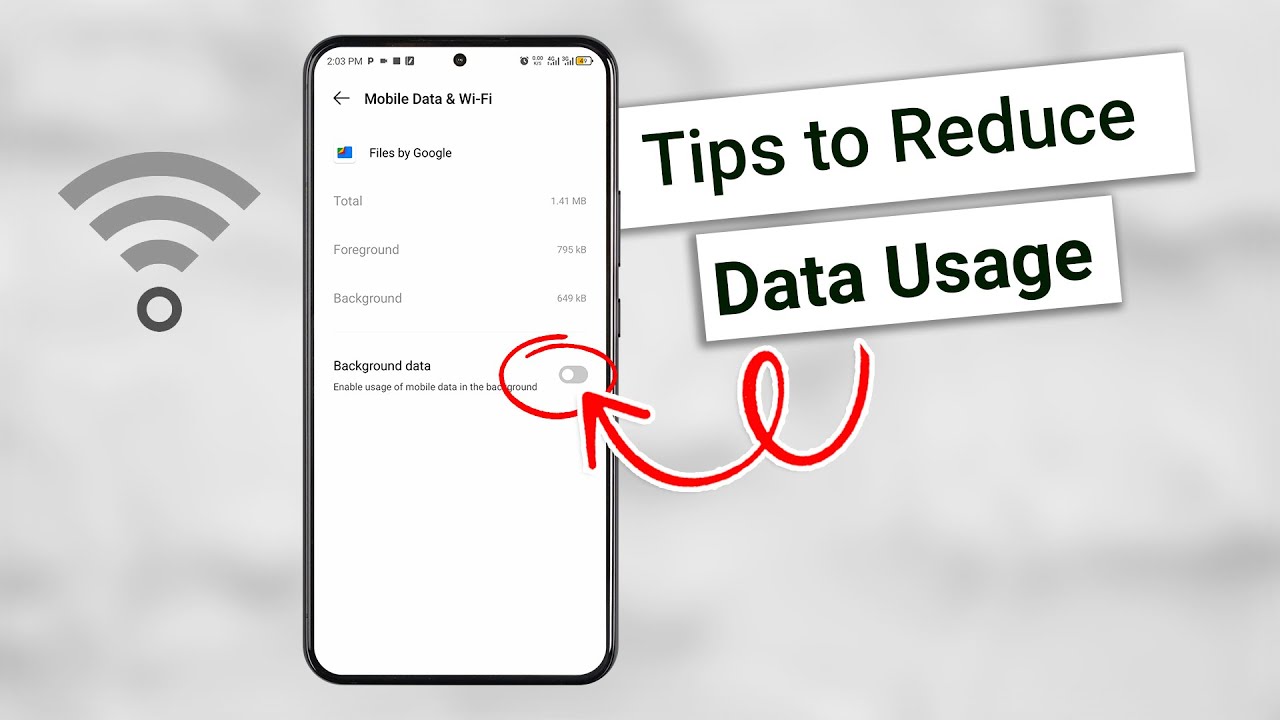
- Android: Go to Settings > Apps > See all apps → tap an app → Mobile data & Wi-Fi → turn off Background data for non-essential apps.
- iPhone: Go to Settings > General > Background App Refresh and set to Wi-Fi or Off.
Also disable Auto-sync for email, photos (Google Photos/iCloud), and cloud backups unless on Wi-Fi.
5. Download Content in Advance (Offline Mode)
Avoid streaming over mobile data:
- Download maps in Google Maps or Apple Maps over Wi-Fi.
- Download playlists, podcasts, or episodes in Spotify, YouTube Music, Netflix, or Apple Music.
- Pre-load videos or articles in apps that support offline reading.
This single habit can save 1–2 GB per week for heavy users.
6. Optimize Streaming and Media Settings
Video and social media are the biggest data consumers.
- Lower video quality: Set YouTube, Netflix, TikTok, Instagram, and Facebook to Data Saver or SD/Low quality when on mobile data.
- Disable Auto-play videos in social apps (especially Facebook, Instagram, and X).
- In Netflix (2026 Mobile Data Saver feature): Enable the built-in saver mode for 35–55% less data per hour with minimal quality loss.
- Turn off high-quality image loading or HD uploads in social media and messaging apps.
7. Disable Automatic Updates and Large Downloads
Prevent apps and the OS from updating over cellular data.
- Android: Settings > Google Play Store > Settings > Auto-update apps → select Over Wi-Fi only.
- iPhone: Settings > App Store > turn off App Updates and Automatic Downloads (or use Low Data Mode to restrict them).
Also disable automatic photo backups (Google Photos, iCloud) on mobile data.
8. Additional Quick Wins
- Turn off Location Services (GPS) when not needed — many apps use it for background data.
- Disable Wi-Fi Assist (iPhone) or Smart Network Switch (Android) if they frequently switch to mobile data.
- Use Chrome Data Saver (on Android) or browser compression features.
- Review and uninstall or restrict rarely used apps that run in the background.
- For extreme saving: Use Airplane Mode when you don’t need connectivity, or turn off mobile data entirely and rely on Wi-Fi.
Quick Comparison: Data-Saving Features (2026)
| Feature | Android | iOS | Typical Savings |
|---|---|---|---|
| Data Saver / Low Data Mode | Excellent (background restrict) | Very Good | 20–40% |
| Background App Refresh | Per-app control | Global + per-app | High |
| Video Quality Controls | Built-in + app-level | App-level | Very High (streaming) |
| Offline Downloads | Strong support | Strong support | 1–2 GB/week possible |
| Data Usage Limits | Warning + hard limit | Usage tracking only | Prevents overages |
Final Tips for Maximum Savings in 2026
- Check your data usage weekly and adjust settings for top-consuming apps.
- Combine multiple strategies — enabling Data Saver + offline downloads + lower streaming quality often cuts usage by half.
- When traveling, download everything possible before leaving Wi-Fi zones.
- Test changes with your phone’s built-in usage stats to see real impact.
By applying these steps, most users can significantly extend their mobile data plan without sacrificing essential functionality. Start with enabling Data Saver/Low Data Mode and restricting background activity — you’ll likely notice the difference within days.