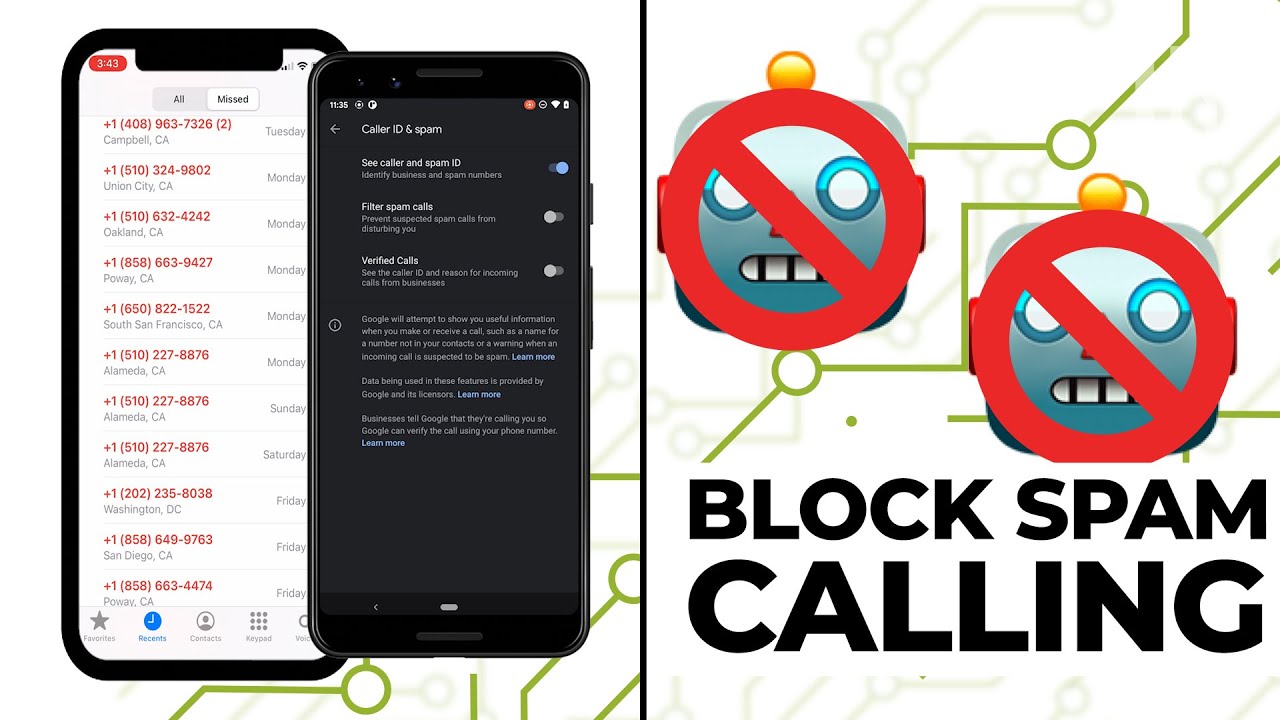
Spam calls and robocalls remain a persistent annoyance in 2026, but both Android and iPhone devices offer powerful built-in tools to significantly reduce or eliminate them. These features use databases, carrier data, and AI to identify and filter spam, often without third-party apps. For tougher cases, carrier services or apps can provide extra protection.
Here’s a practical guide to blocking spam calls on Android and iPhone.
Blocking Spam Calls on Android
Most Android phones (especially those using the Google Phone app, common on Pixel and many other devices) include Caller ID & spam protection. This crowdsources spam detection and can filter calls automatically.
- Enable Caller ID and Spam Protection (and Filtering)
- Open the Phone app.
- Tap the three-dot menu (More options) in the top right.
- Select Settings.
- Tap Caller ID & spam (or Caller ID and spam protection on some devices).
- Turn on See caller ID & spam.
- Turn on Filter spam calls (this silences most detected spam without ringing; calls appear in your history for review).
- In the Phone app → Settings → Block numbers → Enable Block calls from unknown numbers (for non-contacts).
- Also enable Caller ID and spam protection.
- Block Specific Numbers Manually
- In the Phone app, go to Recents (call history).
- Tap the unwanted number → Block / Report spam (or tap the info icon and select Block). This adds it to your blocked list and helps improve spam databases.
- Additional Options
- Register on the National Do Not Call Registry (donotcall.gov) if in the US.
- Check your carrier’s free tools (e.g., T-Mobile Scam Shield, Verizon Call Filter, AT&T ActiveArmor).
- For advanced/privacy-focused blocking, consider open-source apps like SpamBlocker from F-Droid (no ads/tracking).
- On Pixel devices (and expanding to others), Call Screen lets Google Assistant answer unknown calls and transcribe why they’re calling.
These steps often cut spam by 80-90% without extra apps.
Blocking Spam Calls on iPhone (iOS 18+ / iOS 26+)
Apple has strengthened spam tools over recent iOS versions, including Silence Unknown Callers, spam filtering via carriers, and newer Call Screening features (expanded in iOS 26).
- Silence Unknown Callers (Sends non-contacts straight to voicemail—no ring)
- Go to Settings → Apps (near bottom) → Phone.
- Scroll to Silence Unknown Callers (or under Calls/Screen Unknown Callers).
- Toggle it on. Calls from your contacts, recent outgoing calls, or Siri suggestions still ring normally.
- Enable Spam/Junk Call Filtering
- In Settings → Apps → Phone.
- Scroll to Call Blocking & Identification or Call Filtering.
- Turn on Spam (or Silence Junk Callers) to silence carrier-identified spam/fraud calls.
- Enable any third-party call-blocking apps here if installed.
- Use Call Screening (Newer Feature in iOS 26+)
- In Settings → Apps → Phone → Screen Unknown Callers section.
- Choose Ask Reason for Calling (recommended for strong protection). The iPhone won’t ring immediately for unknown numbers; it prompts the caller to state their purpose (similar to Google’s Call Screen). Options include Silence or Never. This uses on-device processing for privacy.
- Block Specific Numbers Manually
- In the Phone app → Recents.
- Tap the (i) info icon next to the number → Block this Caller. Or swipe left on a call in recents and tap the block option.
- Additional Options
- Install reputable third-party apps (e.g., RoboKiller, Hiya, Truecaller) from the App Store, then enable them in Settings → Phone → Call Blocking & Identification.
- Use Live Voicemail (Settings → Phone → Live Voicemail) to see real-time transcriptions of unknown callers before answering.
- Carrier apps/services (e.g., Verizon, T-Mobile) often add extra layers.
General Tips for Both Platforms
- Never answer or engage with suspected spam—it confirms your number is active.
- Report spam calls (via the Phone app options) to improve community databases.
- Forward spam texts to 7726 (SPAM) to report to your carrier.
- If spam persists heavily, contact your carrier—they may offer advanced network-level blocking.
- Avoid shady third-party apps that request excessive permissions.
With these built-in features enabled, most users see a dramatic drop in unwanted calls. If you’re still overwhelmed, combining carrier tools with the device settings provides the strongest defense in 2026. Stay vigilant—scammers evolve, but so do these protections!